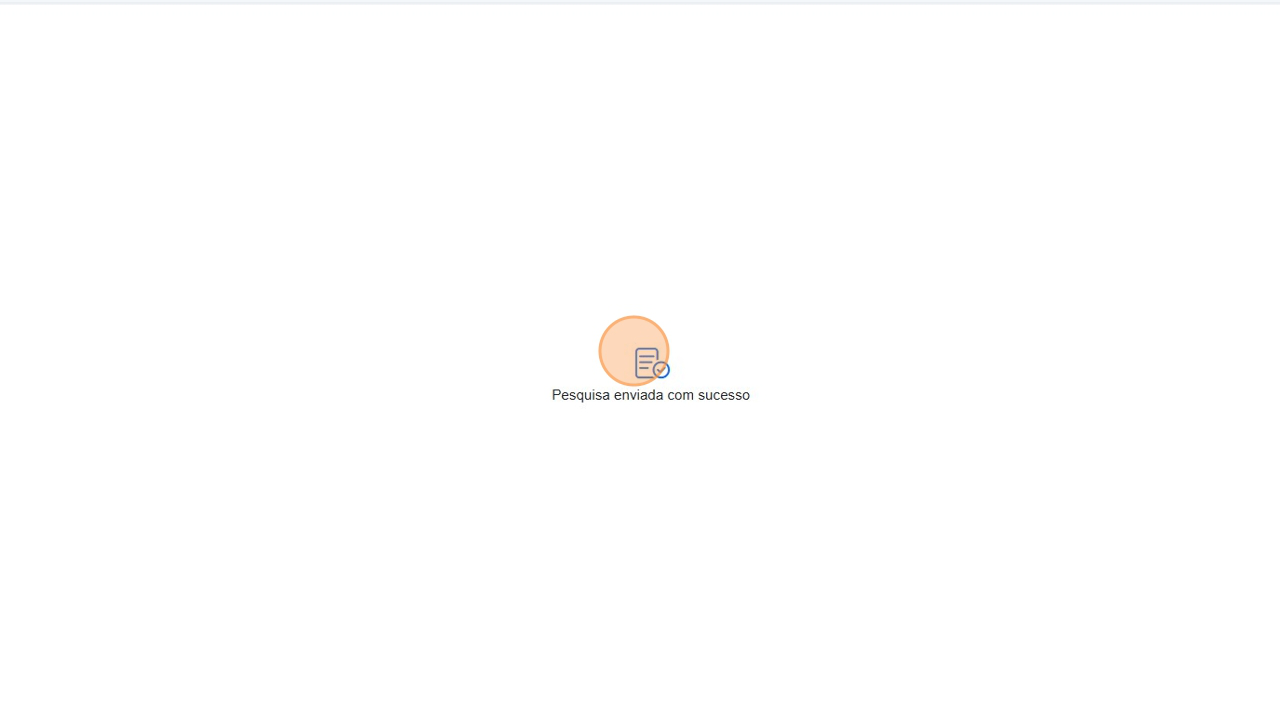
Submitting Internal Validation Survey
1
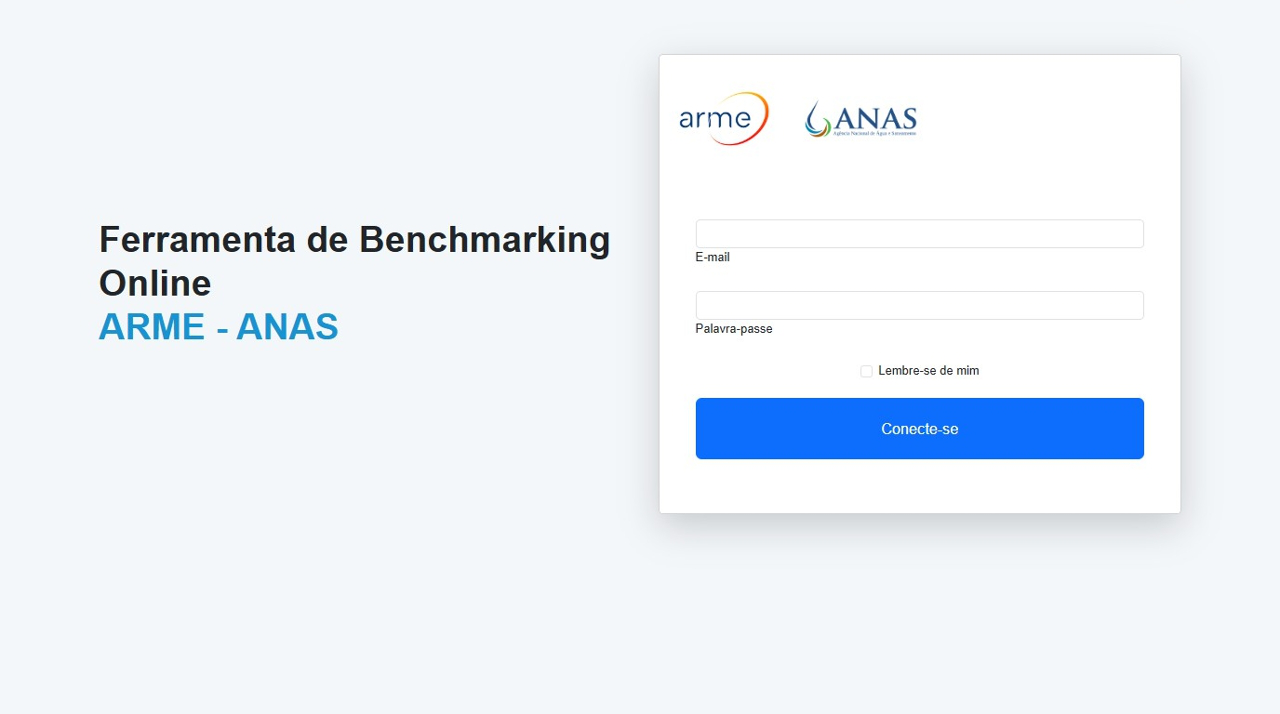
Action: Navigate to https://cv.mcng.org/Identity/Account/Login
Access the ARME - ANAS platform by entering the URL into your web browser. Ensure a secure connection.
2
Action: Navigate to https://cv.mcng.org/Identity/Account/Login
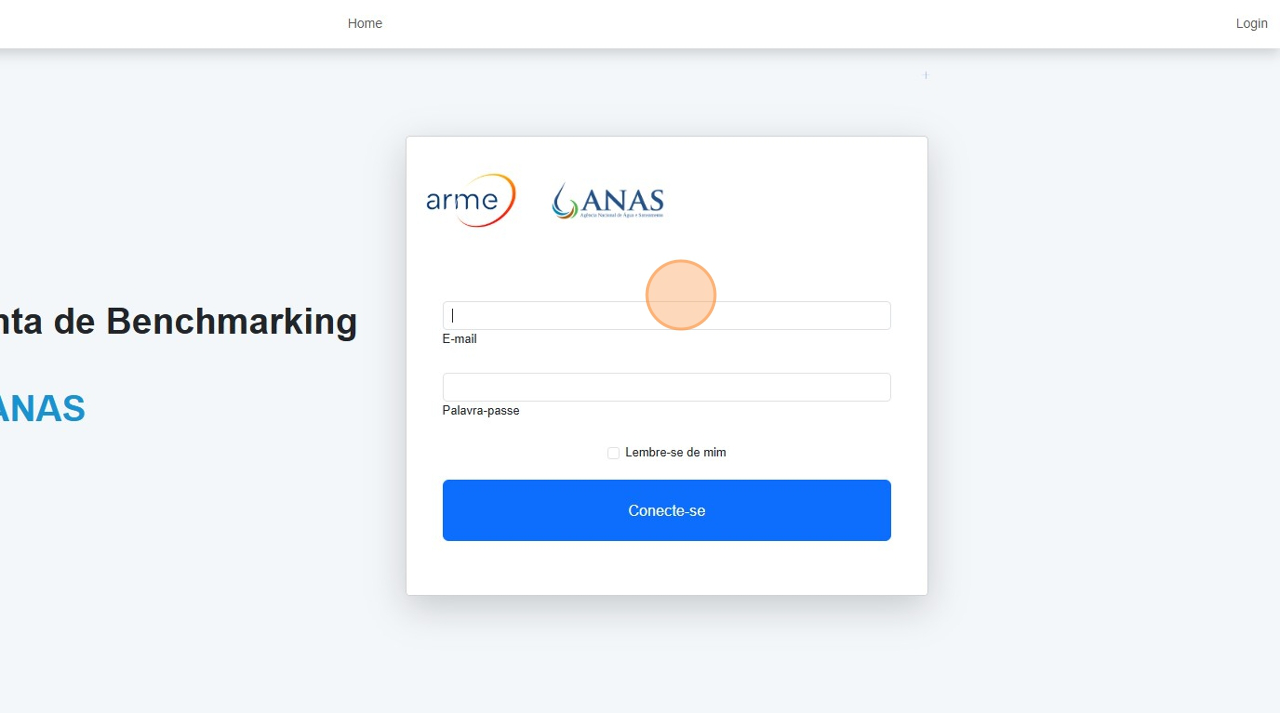
Action: Click the 'E-mail' field.
Click on the input box and type your registered email address for login.
3
Action: Navigate to https://cv.mcng.org/Identity/Account/Login
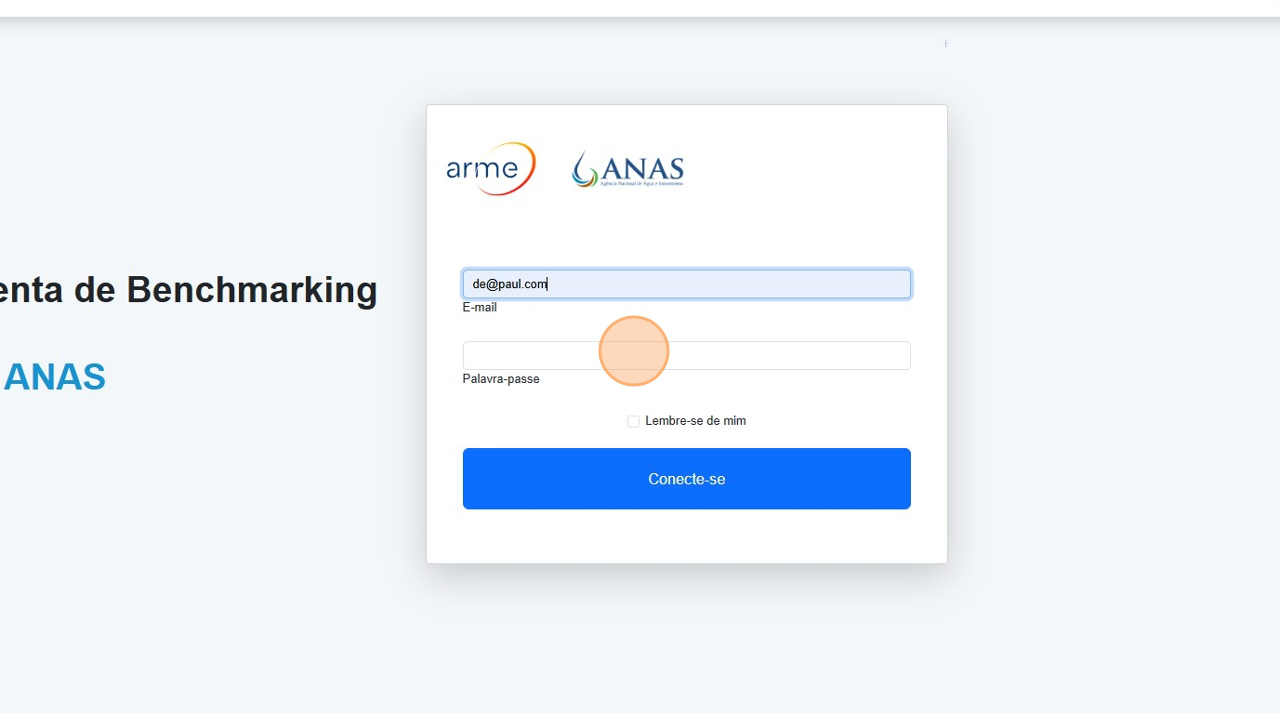
Action: Click the 'Palavra-passe' field.
Select the password input and carefully enter your login credentials.
4
Action: Navigate to https://cv.mcng.org/Identity/Account/Login
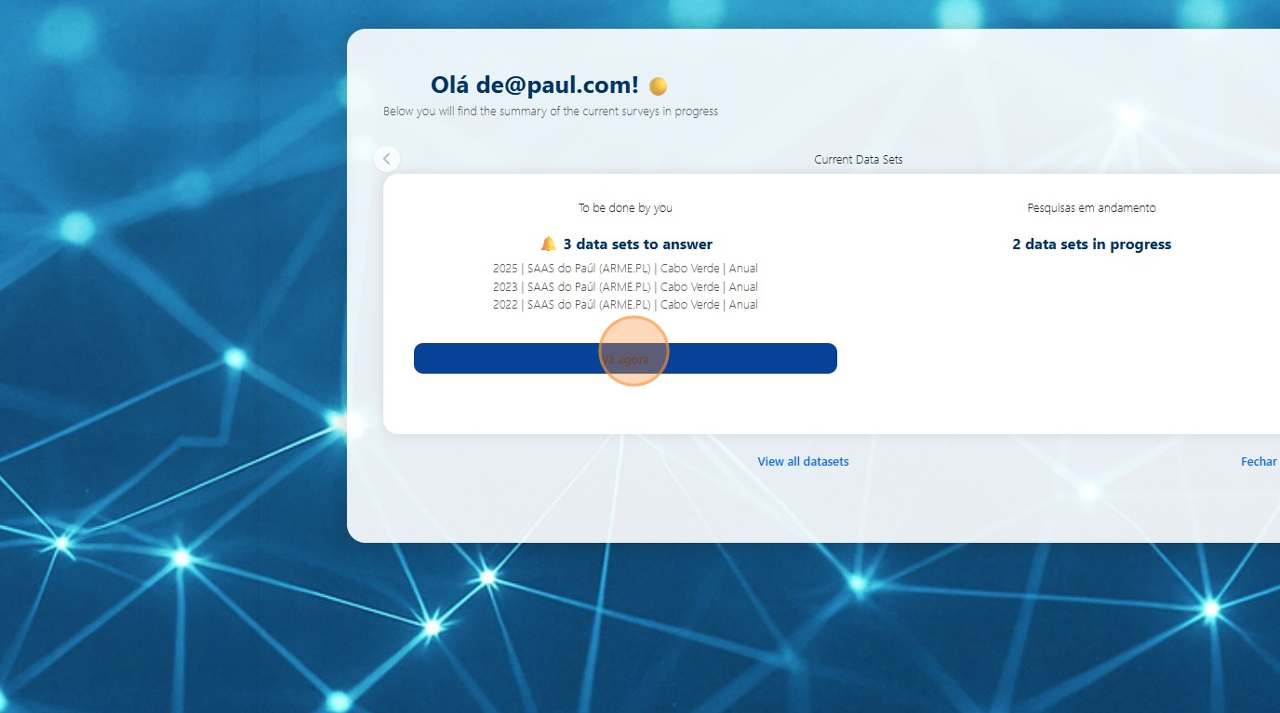
Action: Click 'Vá agora'
Press this button to move forward once your email and password are correctly entered.
5
Action: Navigate to https://cv.mcng.org/Identity/Account/Login
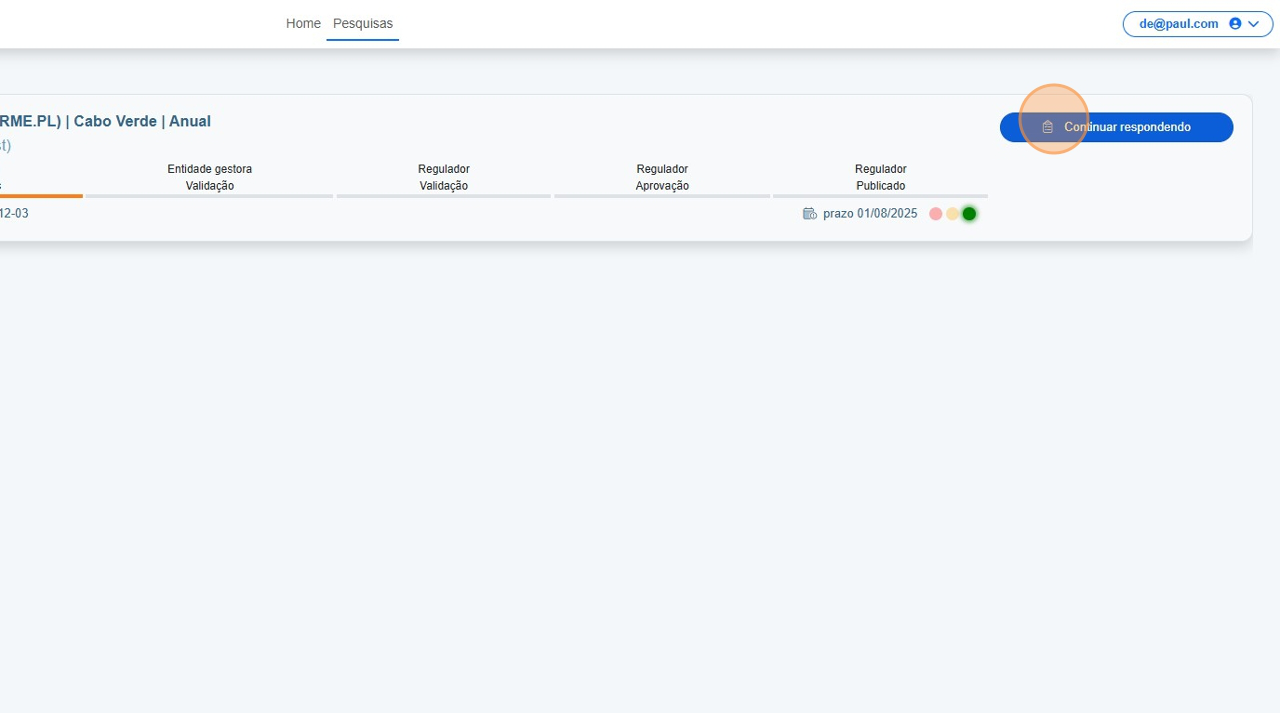
Action: Click 'Continuar respondendo'
To continue a previously started response, click on this button next to the dataset.
6
Action: Navigate to https://cv.mcng.org/Identity/Account/Login
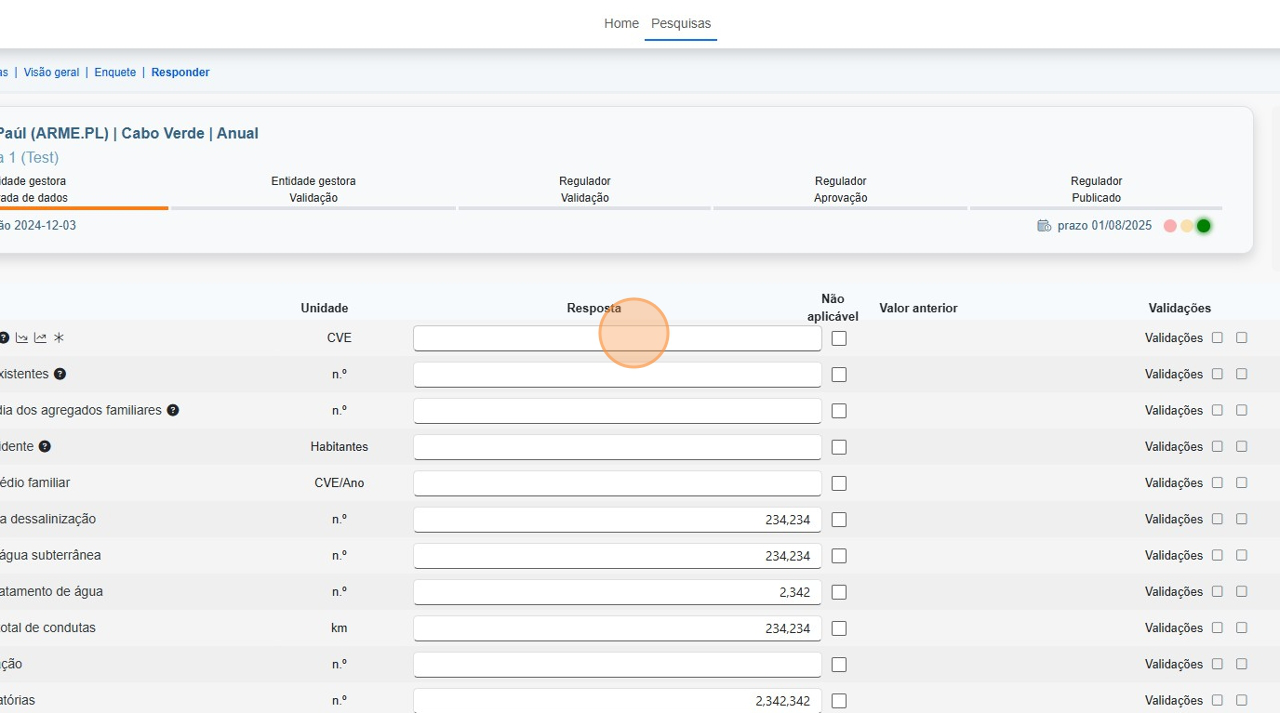
Action: Click this text field.
Begin inputting your values into the designated answer fields shown in the dataset table.
7
Action: Navigate to https://cv.mcng.org/Identity/Account/Login
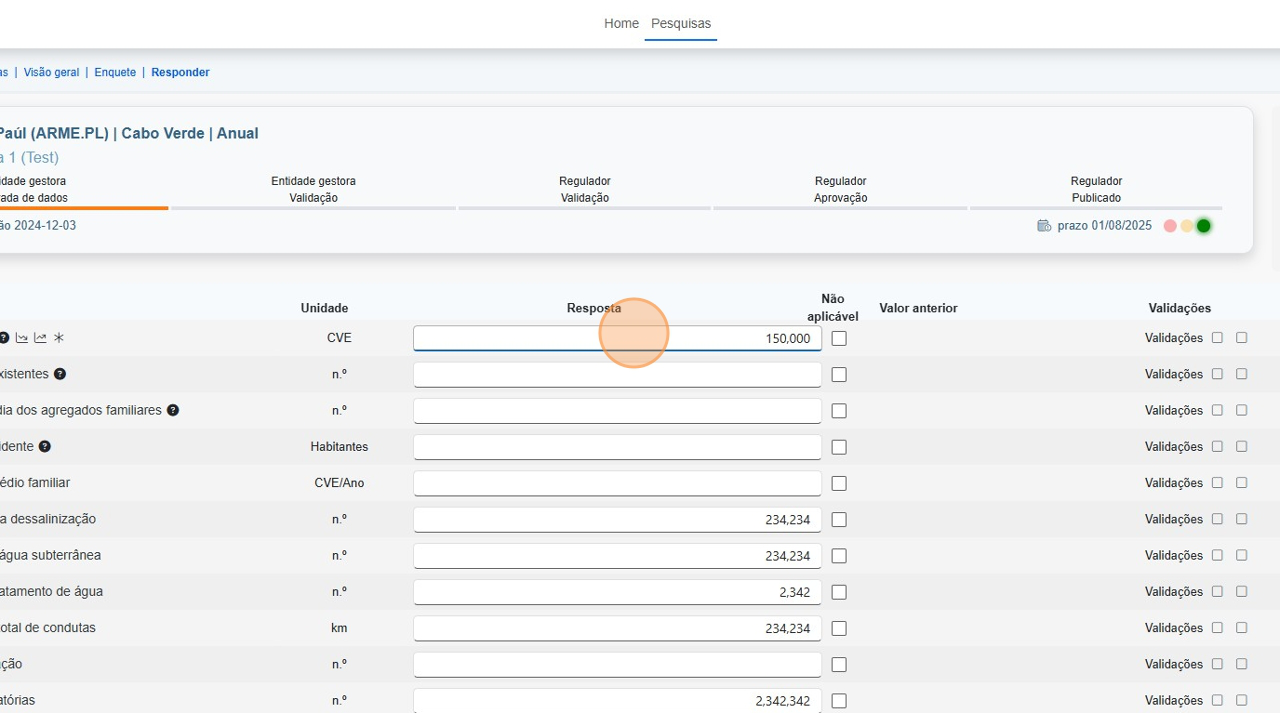
Action: Click this text field.
Continue populating any additional metrics as required for the response.
8
Action: Navigate to https://cv.mcng.org/Identity/Account/Login
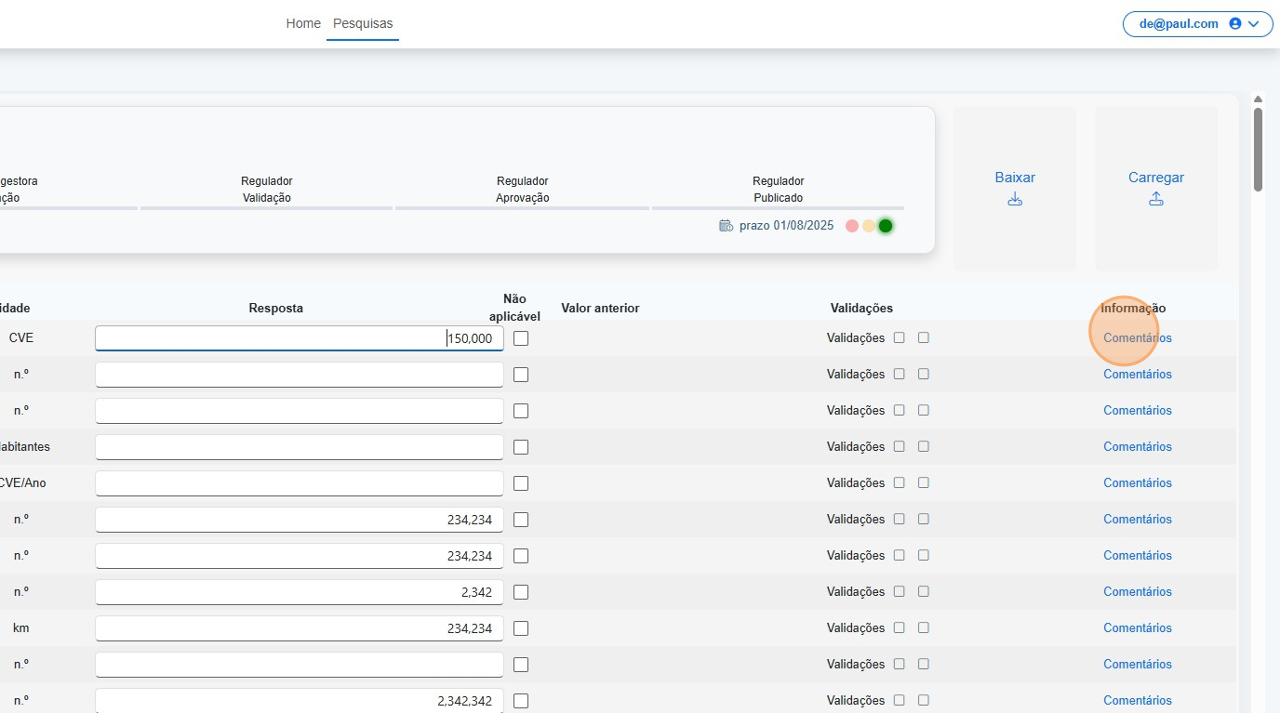
Action: Click 'Comentários'
Select the 'Comentários' link to add further explanation to a metric or value.
9
Action: Navigate to https://cv.mcng.org/Identity/Account/Login
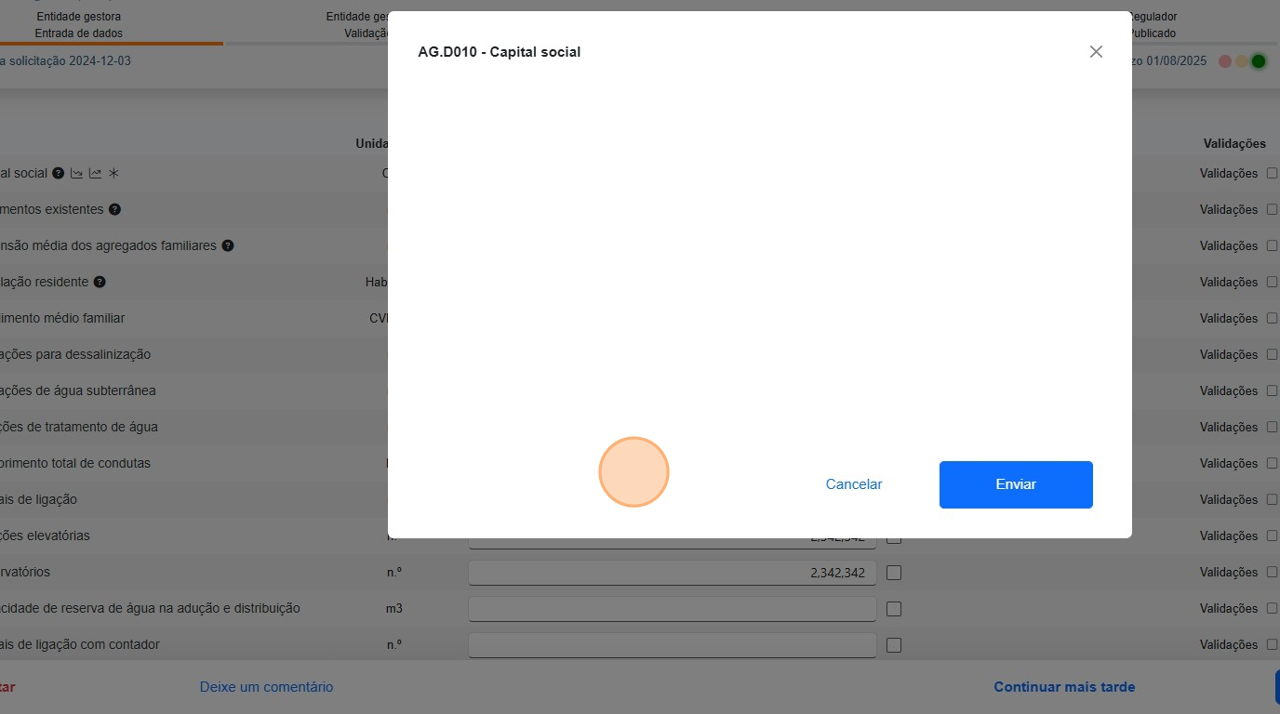
Action: Click this text field.
Begin typing your contextual comment in the input area provided.
10
Action: Navigate to https://cv.mcng.org/Identity/Account/Login
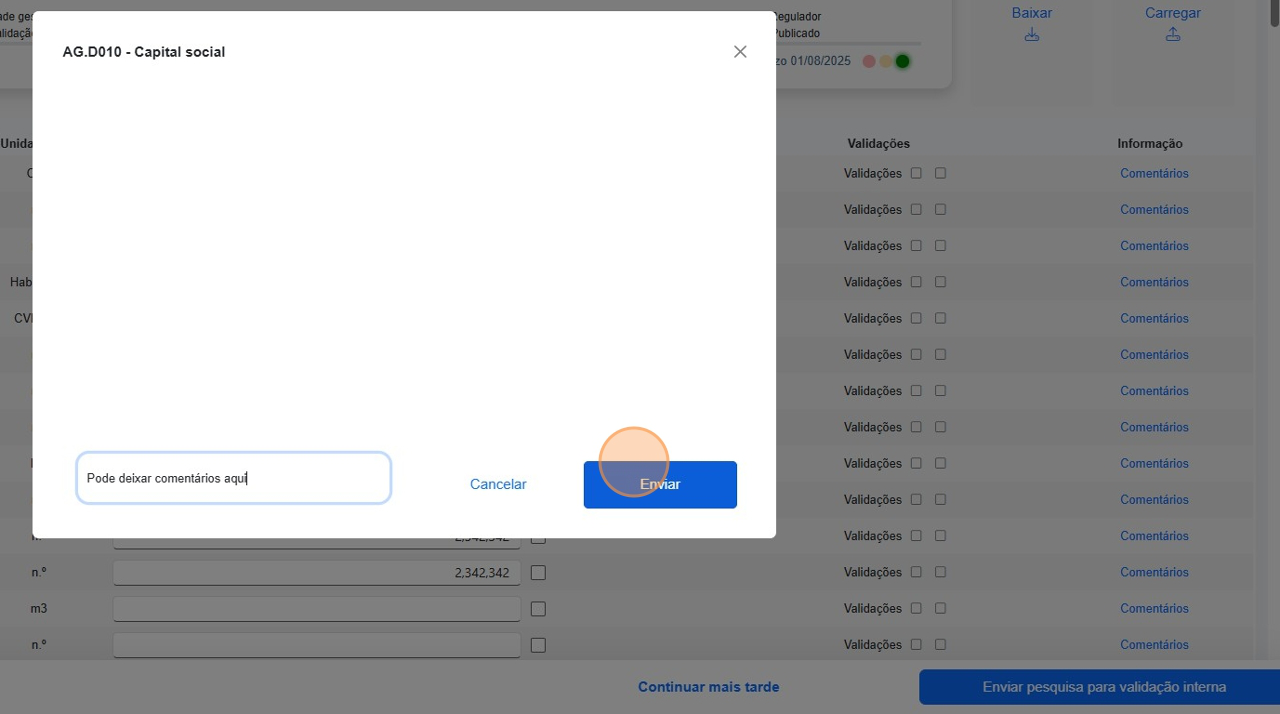
Action: Click 'Enviar'
Save your comment by clicking the submit button within the comment window.
11
Action: Navigate to https://cv.mcng.org/Identity/Account/Login
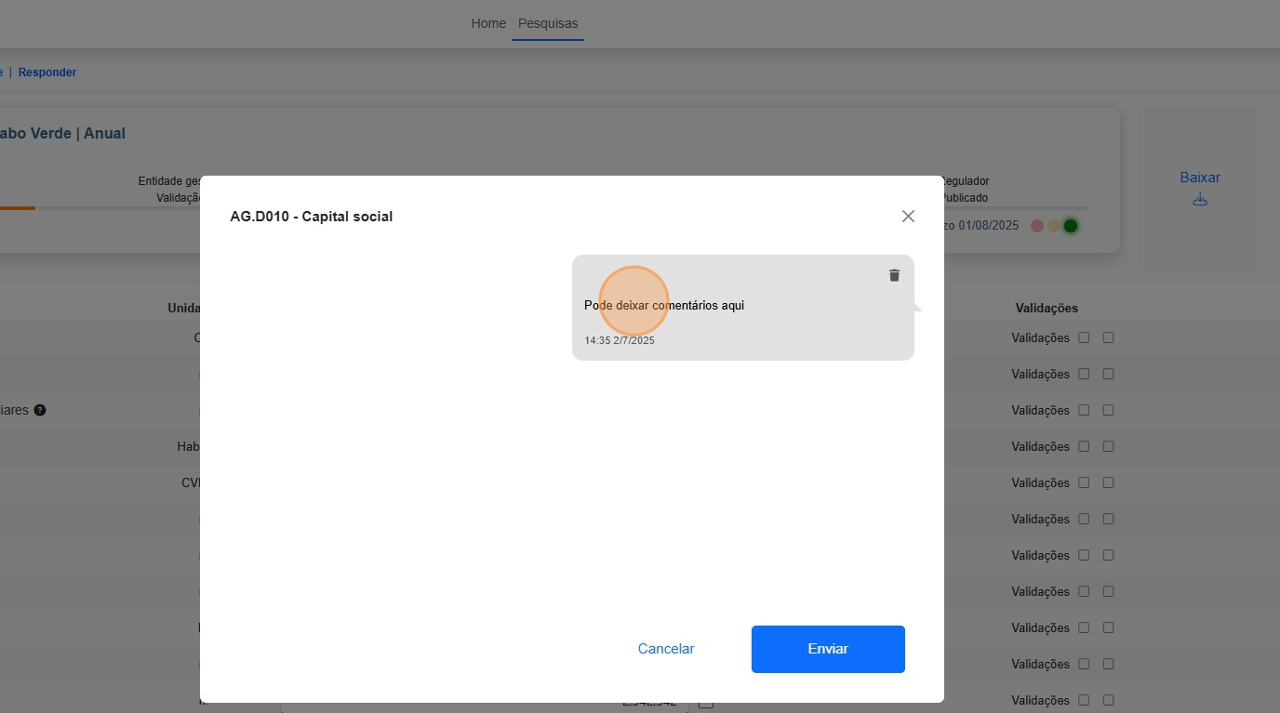
Action: Click 'Pode deixar comentários aqui'
Click this bubble to view or edit a previously submitted comment.
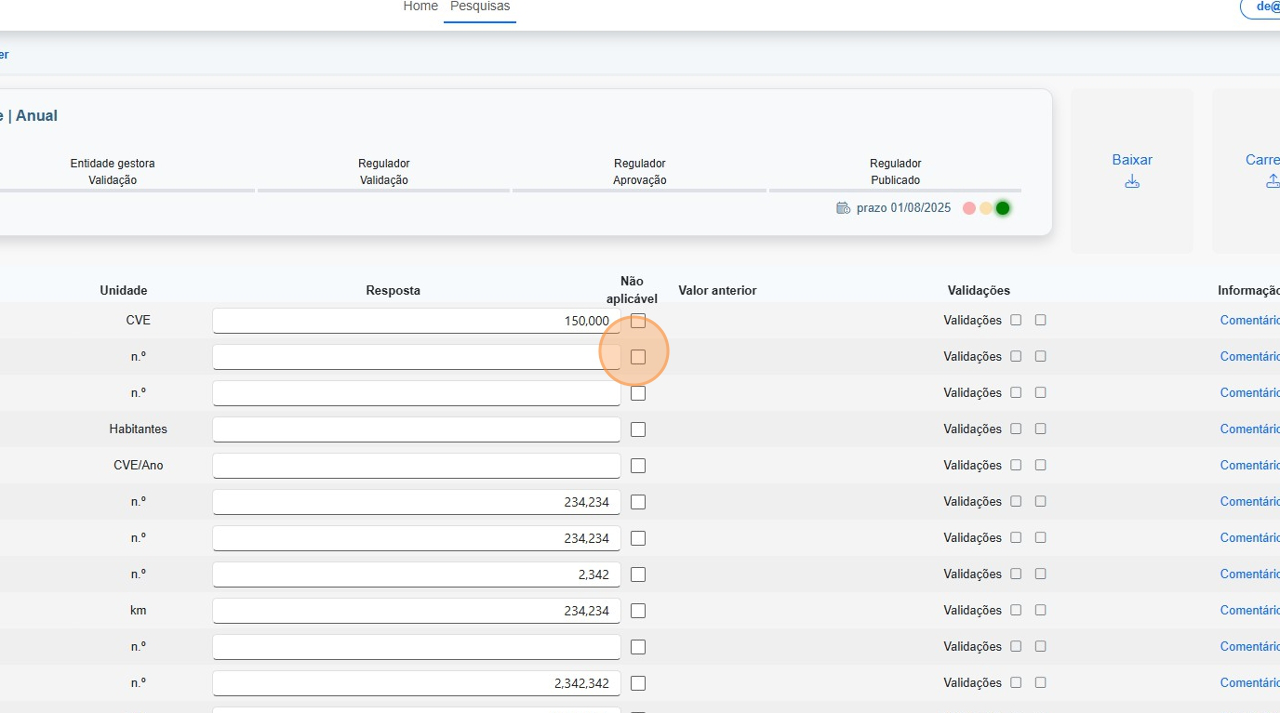
12
Action: Navigate to https://cv.mcng.org/Identity/Account/Login
Action: Click here.
Mark the item as 'not applicable' if the metric does not pertain to your entity.
13
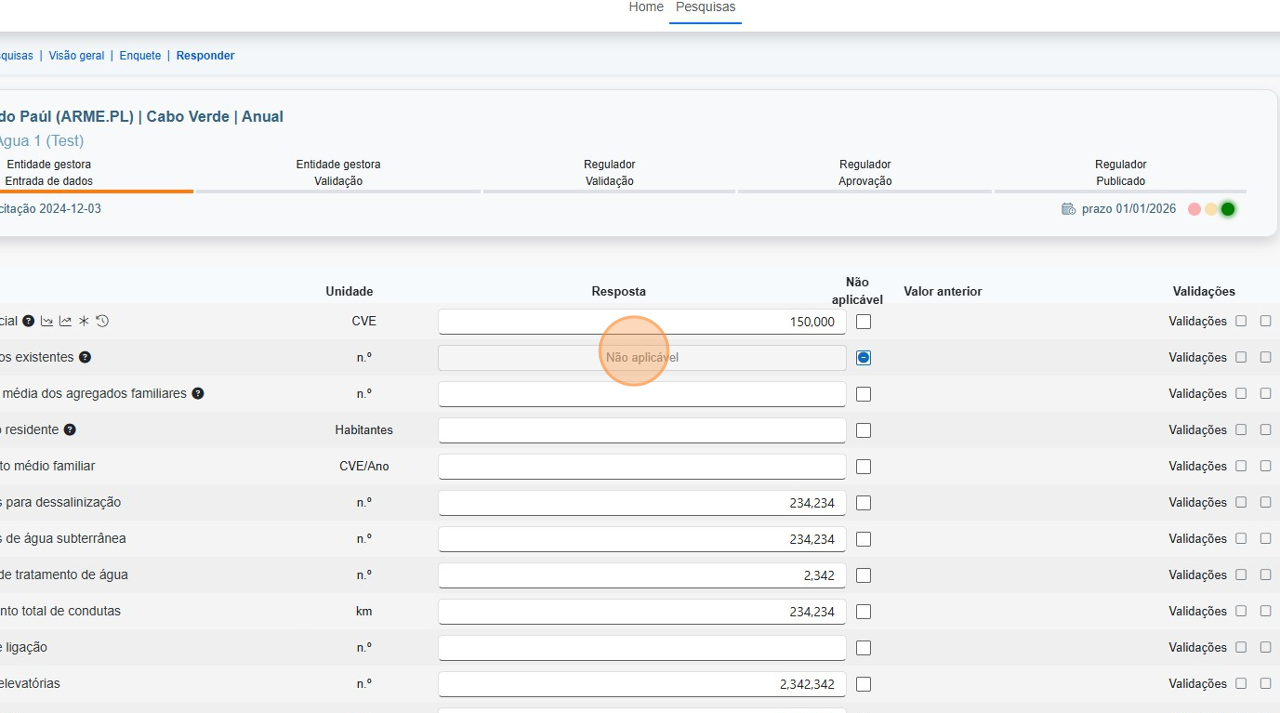
Action: Navigate to https://cv.mcng.org/Identity/Account/Login
Action: Click this text field.
Double-check and finish completing all answer fields.
14
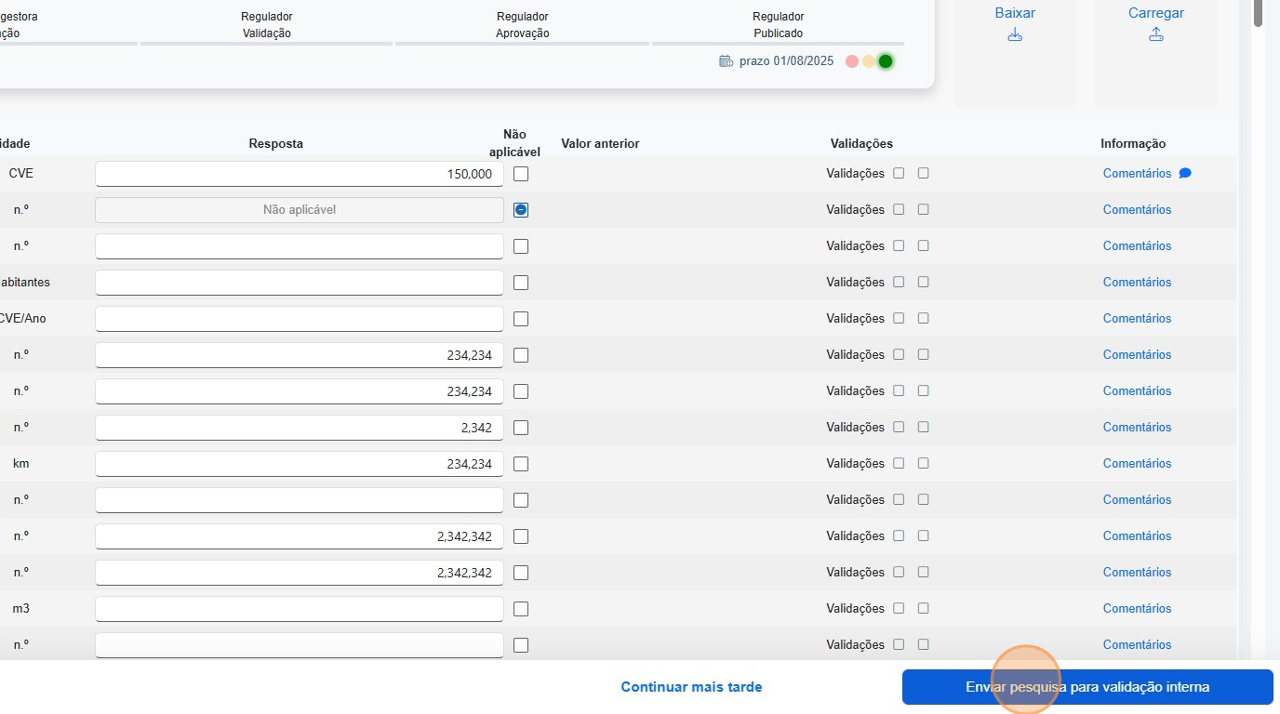
Action: Navigate to https://cv.mcng.org/Identity/Account/Login
Action: Click 'Enviar pesquisa para validação interna'
Use this button to prepare your survey for internal validation.
15
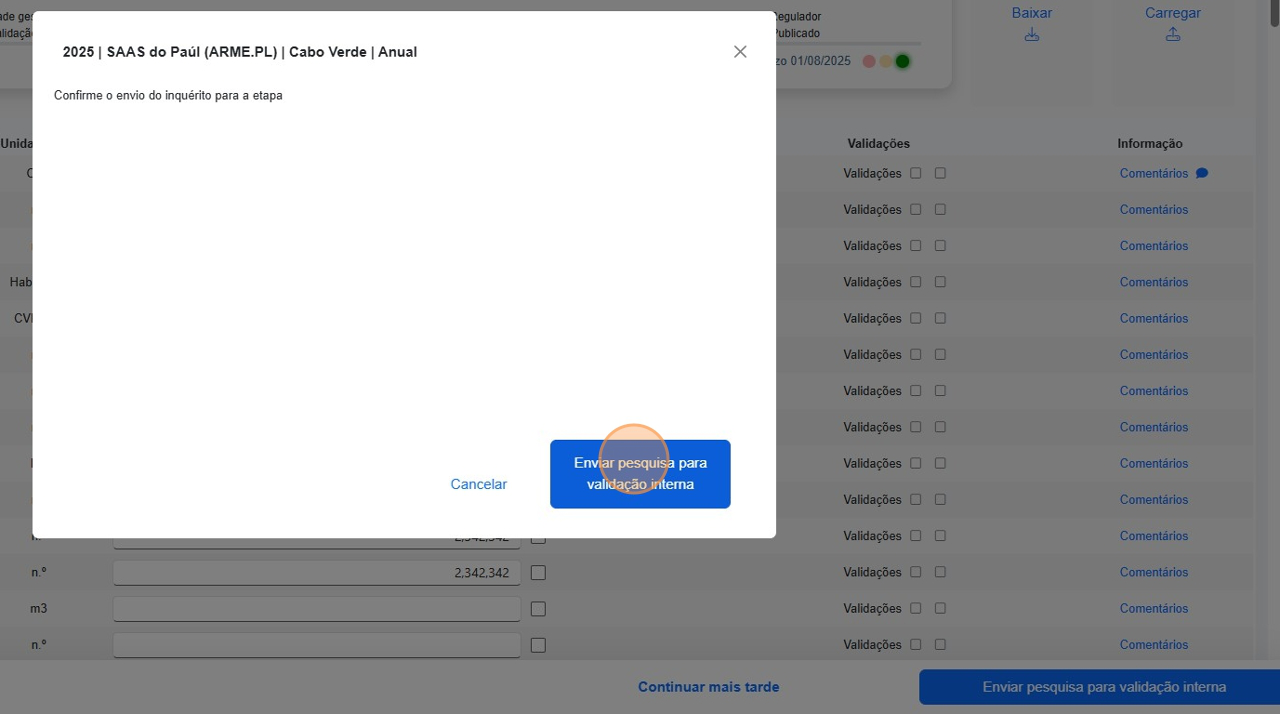
Action: Navigate to https://cv.mcng.org/Identity/Account/Login
Action: Click 'Enviar pesquisa para validação interna'
Confirm the final submission by clicking the same button in the popup.
16
Action: Navigate to https://cv.mcng.org/Identity/Account/Login
Action: Done
Your internal validation survey has now been successfully submitted.